How to Remove Location From Photos Before Sharing Travel Pictures
| Filed | Takes |
|---|---|
| 4 min read |
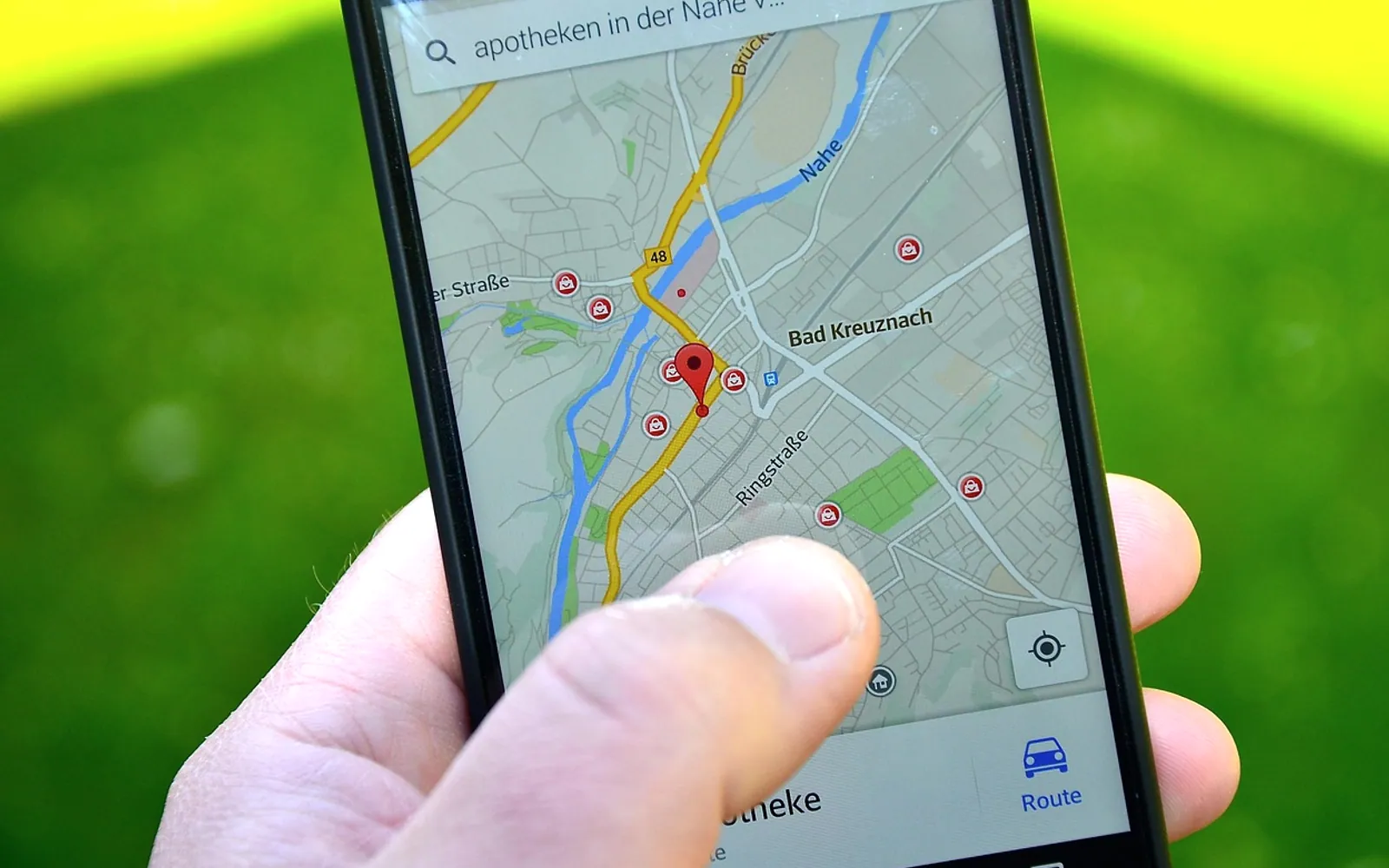
Most smartphones save the GPS coordinates of every picture inside the image file itself. You can deal with that in three places: switch off location saving in the camera, strip the location when you share a picture, or remove it later from files on a computer. Doing at least one of these before posting travel photos keeps your home address, hotel and daily routine out of public view.
What geotagging actually is
Each digital photo carries a small block of hidden information called metadata, usually stored in a format known as EXIF. It records details such as the date and time, the camera or phone model, exposure settings and, when location services are on, the latitude and longitude. That last part is the geotag. Your gallery app uses it to place pictures on a map, which is handy for your own memories and less handy when the file leaves your hands.
Why it matters on the road
- Home is often in the set. A picture of a packed suitcase taken in the hallway can reveal your street.
- Real-time posts announce an empty house. Coordinates plus a timestamp tell anyone where you are right now and that you are not at home.
- Accommodation details. A balcony view tagged to the metre identifies the building you are sleeping in.
- Wildlife and fragile places. Some safari guides and conservation groups ask visitors not to geotag sightings of rare animals, since precise locations can help poachers. If you are heading out on a game drive, add that to your list alongside what to wear on safari.
Where your location can leak
| Source | What it reveals | How to handle it |
|---|---|---|
| Embedded geotag | Exact coordinates of the shot | Strip before sharing or stop recording it |
| Location sticker or tag in a post | A named place you chose to add | Leave it off, or add it after you have moved on |
| Background details | Street signs, door numbers, hotel logos | Crop or pick another frame |
| Timestamp | When you were there | Post later rather than live |
On an iPhone
Remove location from a photo when sharing
- Open the picture in Photos and tap the Share button.
- Tap Options at the top of the share sheet.
- Switch off Location, tap Done, then share as usual.
The original in your library keeps its location; only the copy you send goes without it.
Remove it from the photo itself
Open the photo, tap the info button (or swipe up), choose Adjust next to the location and select No Location. Menu names shift a little between software versions, but the option sits in the same info panel.
Stop recording location altogether
Go to Settings, then Privacy & Security, Location Services, Camera, and choose Never. Maps and other apps keep their own permissions, so navigation still works.
On Android phones
Menus differ by manufacturer, so look for these common labels rather than an exact path:
- In the camera app's settings, a switch such as Location tags or Save location.
- In the gallery or photos app, a details or info panel where the location can be edited or removed.
- On some phones, a Remove location data toggle appears directly in the share screen.
- Cloud photo apps often have a sharing setting that hides location from anyone opening a shared link.
On a computer
- Windows: right-click the file, choose Properties, open the Details tab and click Remove Properties and Personal Information. You can create a clean copy or remove selected fields.
- Mac, in Preview: open the image, choose Tools, then Show Inspector, open the information tab and use Remove Location Info under GPS.
- Mac, in Photos: select the pictures and choose Image, Location, Hide Location.
Do social networks strip it for you?
Several large platforms remove embedded data from uploaded images, but you cannot count on every service doing so. Pictures sent as files through messaging apps, email attachments, cloud folder links and many personal blogs can keep the full original data. The safe habit is to assume a file carries its location until you have removed it yourself. When guests at an event send you their pictures through a shared album, the same applies; our guide to collecting photos from wedding guests covers album privacy settings.
Timing is the simplest privacy tool
Even a perfectly scrubbed photo tells people where you are if you post it the minute you take it. Many travellers now share pictures a day later, after checking out, or keep a running album they publish once home. A quiet temple courtyard or a market at dawn looks just as good on Tuesday as it did on Sunday. Respectful photography matters too; the notes on cameras in our piece on visiting a Buddhist temple respectfully are worth reading before you raise the phone indoors.
A short pre-posting checklist
- Location stripped from the file, or camera geotagging switched off for the trip.
- No location sticker added to the post itself.
- Door numbers, room keys, boarding passes and name badges out of frame.
- Posted after you have left the place, not while you are still there.
- Friends and children in the picture are happy to be shared.
Will turning off camera location affect my maps?
No. Location permission for the camera is separate from navigation apps, which keep working normally.
Can I keep locations for my own archive?
Yes. Leave geotagging on and remove the location only from the copies you share. The share options on most phones are built for exactly that.
What is new in each topic
Tell us what you think.
Suggestions help us plan.